Deep link into the Confect Design AI Agent
Hand the Design Agent a URL containing an image, a text prompt or both, and point it at a new design or one you already haveTable of Contents
The two parametersThe two entry pointsThe four combinations, in the order you will actually use them1. New design from an image, often with text2. Change a design you already have, with text3. New design from text only, no image4. Change a design you already have, with an imageRules for the URLThe agent no longer needs a reference imageWriting the promptWith an image: describe the reference, then say what you want outWriting a text-only promptChanging an existing designFormatting options for product field textsWorked examplesQuick referenceBefore you send the linkWrapping a new-design link in the Confect AI ButtonAnimated or staticRules that are not negotiableWhen to use it, and when not toA link can open the Design Agent with the work already started. You decide two things: what you hand it, and what it works on.
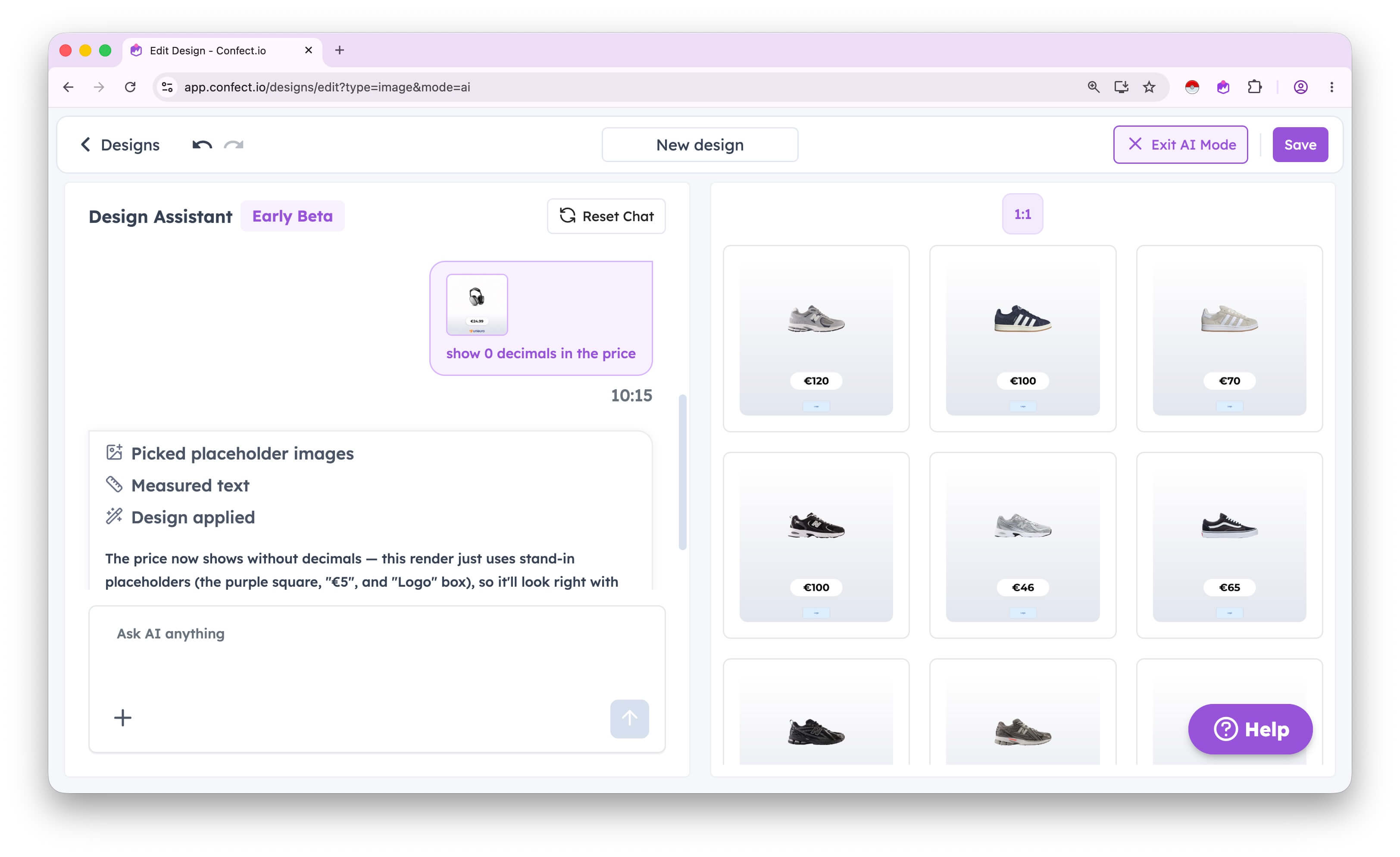
You can try it by clicking here:
What you hand it: an image, a text prompt, or both.
What it works on: a new design, or a design you already have.
That is two parameters and two entry points, and every combination below is built from them.
The two parameters
| Parameter | What it is | Written as |
|---|---|---|
image |
The URL of an image the agent should work from. The visual half of the prompt. | image=<image url> |
prompt |
Free text: what the agent is looking at, and what you want out. The text half. | prompt=<your instruction> |
First parameter after the path takes a ?, the rest take &. Either parameter can be used alone or together.
The two entry points
A new design:
https://app.confect.io/action/recreateA design you already have:
https://app.confect.io/designs/edit/<design id>?mode=aiThe design id is the number already sitting in the URL when you have that design open in Confect. On this entry point mode=ai has to be there, otherwise the link opens the normal editor and everything else is ignored.
Both entry points survive logging in, so a cold link from outside the app still lands correctly. If the person clicking belongs to more than one company or market, they pick which company and market to work in on arrival.
The four combinations, in the order you will actually use them
1. New design from an image, often with text
The main one. The agent opens with the image loaded and starts rebuilding it as a design.
https://app.confect.io/action/recreate?image=<image url>&prompt=<your instruction>https://app.confect.io/action/recreate?image=https://cdn.confect.io/uploads/media/catalog-ads-designs-the-big-cheat-sheet-unieuro-price.png&prompt=show%200%20decimals%20in%20the%20priceThe image can stand alone without a prompt, but the prompt is what stops the AI guessing. See "Writing the prompt" below.
2. Change a design you already have, with text
The second most used, and the better answer to "can you change the background colour" or "can you move the logo".
https://app.confect.io/designs/edit/<design id>?mode=ai&prompt=<your instruction>https://app.confect.io/designs/edit/7703?mode=ai&prompt=make%20the%20background%20yellow%20instead%20of%20redRather than opening the design, making the edit and saving it, send a link that opens their design with the change already requested. They click, they watch the agent do it, and next time they know how to ask for it themselves. The same link works for improving a design rather than fixing one: open it with a prompt suggesting the change you would make.
3. New design from text only, no image
No reference at all. The agent builds from your description, so the description has to carry everything.
https://app.confect.io/action/recreate?prompt=<your instruction>This is the combination where prompt quality decides everything. A vague prompt gets a vague design. See "Writing a text-only prompt" below.
4. Change a design you already have, with an image
Rare, but it works: hand the agent an image while it is looking at an existing design.
https://app.confect.io/designs/edit/<design id>?mode=ai&image=<image url>&prompt=<your instruction>Say what the image is for, otherwise the agent has to guess whether it is a reference to copy, a logo to place or a background to use.
Rules for the URL
Write every space in the prompt as %20. Not a nice-to-have. Plain spaces happen to work in some places and break in others: email tools, link trackers, CMS editors and chat apps all rewrite links, and a raw space is the first thing to get cut or truncated. Write show%200%20decimals%20in%20the%20price, never show 0 decimals in the price, and the link works everywhere without you having to test where it does not.
On a design link, mode=ai has to be there. Without it the link opens the normal editor and the prompt and image are ignored.
Link the image you want reproduced, not a screenshot of a full ad. Point image at the creative itself. A screenshot of a live ad, with the profile name, the ad copy, the headline and the CTA button around it, is not supported: the agent will treat the interface as part of the design. Crop it down to the image first, then link that.
The image has to be publicly reachable. If the URL needs a login, sits behind a firewall or expires, the agent has nothing to look at. Host it somewhere open first.
Encode any ? or & inside the image URL. Those characters end and separate parameters, so a raw one cuts your link in half. Write ? as %3F and & as %26 inside the image URL. This bites most often on CDN images carrying a ?width= parameter.
Keep the prompt to a few sentences. There is no published length limit, but the link is still a URL: browsers handle around 2,000 characters comfortably and email link rewriters can truncate longer ones. Be elaborate where it counts, not padded.
The agent no longer needs a reference image
Worth knowing if you last used the Design Agent a while ago: it used to reply that it could only work from reference images while in beta. That is gone. Inside the assistant you can now just describe what you want, for example "add a 20% off badge in the top-right corner", with nothing uploaded.
Writing the prompt
Everything you do not say, the AI infers. That is the whole game. The prompt is where you take decisions away from it, and the three situations need different things from you.
With an image: describe the reference, then say what you want out
The AI gets exactly one image. From a single product image there is no way to see which values come from a product field and which are typed once and left alone.
Job one: which texts are product fields and which are static. This is the biggest thing it cannot work out on its own, and the one that ruins recreations most often.
A price in the ad: is that the dynamic price of that specific product, or a static price about the category or the campaign behind that design?
Text that looks like a product category: is it dynamic, pulled from the product's category field, or is it broader static text that belongs to the whole design?
The AI will pick one. Tell it which, and it stops guessing.
&prompt=the%20product%20name%20and%20price%20are%20product%20fields,%20"Summer%20Sale"%20is%20static%20textJob two: what you want out. The reference shows where you are starting. Say what should be different, and which parts of Confect to use getting there:
- Which product field a given text should use. Name the position and the field: the text in the top left should be the product name, the text in the bottom right should be the price of the product.
- The splash should be an AI-generated image. Say so, otherwise the AI has no reason to generate one.
- The splash should be editable. Ask for the background only as the image, with the text as its own text layer on top. Otherwise you get one flat graphic you cannot change.
- A specific feature should be used. The color modification feature on the background, a drop shadow with particular settings, a specific hex code on a given layer. The AI has no way of knowing from one product image that the background is meant to be color modified. Tell it, and it will use the feature.
- How each product field text should be formatted. See the formatting options below.
Point the two halves at each other. Write the text so it references what is visible in the image: "the purple shape behind the price", "the text in the top left", "the badge in the bottom right corner". Vague instructions about "the heading" force it to work out which element you mean before it can act.
Writing a text-only prompt
With no image, the prompt is the only input. Be specific to the point of feeling excessive, because every detail you leave out is a detail the AI decides for you. The better the prompt, the more precise the outcome.
Not this:
make a Black Friday designThat is a theme, not a design. It says nothing about layout, colours, which texts are dynamic, or what the offer looks like, so the result is a guess that happens to be black.
This:
Black Friday design for a fashion brand. Dark background, product image filling the frame. Static text "BLACK FRIDAY" in uppercase in a yellow badge in the top right. Product name in the top left, white, uppercase, max 3 words. Price in the bottom right with 0 decimals, and the saving next to it as a percentage with 0 decimals, prefix "Save " and suffix "%". Logo in the bottom left. Keep the badge editable: background as an image with the text as its own layer.Work through the same checklist every time:
- What the design is for, and the brand or category it is for
- The layout, element by element, with positions
- Which texts are product fields and which are static, and the static wording
- Colours, by hex code where it matters
- How the background and the product image are treated
- Formatting for prices and savings
- Which Confect features to use
- What must stay editable afterwards
Changing an existing design
There is no reference to describe, so the whole prompt is the change. Name the element and what happens to it: "make the background yellow instead of red", "move the logo to the top right corner", "add a 20% off badge in the top-right corner". One instruction per thing you want changed.
Formatting options for product field texts
Product field texts are not printed raw. Every one of them can be formatted, and the AI cannot tell from a single image which formatting was used, or invent your preference out of thin air on a text-only prompt. Say it, and you get it on the first try.
Any product field text:
- Case: uppercase, lowercase or default case
- Limit the number of words to a set number
- Find and replace
- Split on a separator, and which part of the split text to show
- Text before it (prefix) or text after it (suffix)
Prices:
- Number of decimals
- Thousand separator
- Decimal separator
- Raised decimals, and how much is raised: decimals only, decimals plus suffix, or decimals plus suffix plus separator
- Hide the decimals when they are zero, while still showing them when they are not
Savings:
- Format: percentage or currency
- Number of decimals, almost always 0 when it is a percentage
- Thousand separator
- Decimal separator
- Raised decimals, and how much is raised: decimals only, decimals plus suffix, or decimals plus suffix plus separator. Never used on a percentage
- Hide the decimals when they are zero, while still showing them when they are not
- Prefix and suffix are worth using here. If you want "Save 30%" or a currency next to the number, put it in the text before or the text after so it disappears together with the saving when there is nothing to save
Written into a prompt:
&prompt=price%20in%20the%20bottom%20right%20with%200%20decimals%20and%20a%20dot%20as%20thousand%20separator.%20Category%20in%20the%20top%20left%20in%20uppercase,%20max%203%20words.%20Saving%20as%20a%20percentage%20with%200%20decimals,%20prefix%20"Save%20"%20and%20suffix%20"%25"Worked examples
Given the image only, this reference kept coming back with two decimals on the price. One instruction fixed it:
https://app.confect.io/action/recreate?image=https://cdn.confect.io/uploads/media/catalog-ads-designs-the-big-cheat-sheet-unieuro-price.png&prompt=show%200%20decimals%20in%20the%20priceA fuller image prompt, doing both jobs at once:
&prompt=the%20text%20in%20the%20top%20left%20is%20the%20product%20name,%20the%20text%20in%20the%20bottom%20right%20is%20the%20price%20of%20the%20product%20with%200%20decimals.%20"Shop%20now"%20is%20static%20text.%20Use%20the%20color%20modification%20feature%20on%20the%20background.%20Keep%20the%20splash%20editable:%20background%20as%20an%20image%20with%20the%20text%20as%20its%20own%20layerA change to an existing design:
https://app.confect.io/designs/edit/7703?mode=ai&prompt=make%20the%20background%20yellow%20instead%20of%20redQuick reference
| What went wrong | Add this to the prompt |
|---|---|
| Product field values baked in as fixed text | the product name and price are product fields |
| Static labels turned into product fields | "Shop now" and "New arrival" are static text |
| Texts mapped to the wrong elements | the text in the top left is the product name, the text in the bottom right is the price of the product |
| Wrong product field used for a text | the text in the top left is the brand field, not the product name |
| Price shows decimals you do not want | show 0 decimals in the price |
| Saving shown in currency instead of percent | show the saving as a percentage with 0 decimals |
| Category in the wrong case, or too long | category in uppercase, max 3 words |
| Flat splash you cannot edit | make the splash background an image and keep the text as its own text layer |
| Background is a flat colour instead of the product's | use the color modification feature on the background |
| Wrong crop or empty space around the product | scale the product image to fill the frame |
| Text-only design came back generic | Rewrite it against the checklist above: layout, positions, colours, static wording, formatting |
Remember to write these with %20 instead of spaces when you put them in a link.
Before you send the link
- Is the image the creative itself, cropped free of any surrounding ad interface?
- On a design link, is
mode=aiin the URL? - Is every text accounted for as a product field or as static text?
- Have you named which product field each dynamic text should use, and where it sits?
- Have you given the formatting for prices, savings and cased texts?
- Have you asked for the Confect features the design needs, by name?
- On a text-only prompt, have you been through the whole checklist?
- Is every space in the prompt written as
%20? - Does the image URL load in a private window?
Wrapping a new-design link in the Confect AI Button
When a link that creates a design is going somewhere a reader can see it, put it behind the Confect AI Button. Not the emblem on its own: the whole button, label included. It is the visual signal for AI recreation, and wherever it appears it means one thing, take this ad and rebuild it in Confect. Keeping it identical everywhere is what teaches people what it does before they click it.
Links into an existing design are different. A link that opens someone's own design to make one change belongs in the sentence you are writing, as a normal link in an email or a chat message, not behind a button.
The full guide, with copy-paste snippets and downloads for every size and format, lives here:
cdn.confect.io/uploads/files/confect-ai-button.html
Paste your finished deep link into the Destination link field at the top of that page. Every snippet and download on it updates with your URL, ready to copy.
Five formats, four sizes each (small, medium, large, x-large, with medium as the default):
- Website, static. Copy-paste HTML.
- Website, animated. The same button with the sparks breathing. The motion lives inside the file, so it needs no CSS.
- Email. A PNG and table version, because Outlook for Windows renders mail through Word and shows no SVG at all, and Gmail's SVG support is partial. Never animate the button in email.
- Ad artwork. The whole button as one SVG, static or animated, for creative that has to carry the button inside the image. The label is live Lexend Deca text, so outline it once placed if the font will not be available.
- Video. ProRes 4444 with alpha at 30fps, for editors that cannot read SVG motion. Each clip is one two second cycle, so loop it for as long as the shot needs.
Animated or static
Count the buttons the reader can see at once.
- One button on screen: use the animated one. The movement is what makes it obvious that something happens when you click.
- Several buttons on screen: use the static one. A cheat sheet or a breakdown with a button under every ad turns into noise if all of them are moving.
Rules that are not negotiable
- On web and in email, use the snippet from the guide rather than rebuilding the button or hosting your own copy of the graphic. The snippet loads from the CDN, so when the mark changes your button changes with it. Download the full button files for artwork and video only, where hotlinking is not an option.
- The label is always "Recreate in Confect".
- Do not recolour the button or the mark, and do not rotate the sparks.
- Keep the icon inside the button at 24px or larger so the "AI" stays legible.
- On dark backgrounds, swap the white gradient for
rgba(152,82,219,.18)with a#4a3a5ering and white text. The mark itself does not change.
When to use it, and when not to
Use it anywhere someone is looking at an ad you want them to rebuild: an ad breakdown, a cheat sheet, a Catalog Ad of the Week, a case study, a report, or next to an ad or design inside Confect.
Do not use it for "try Confect" or "book a demo". If clicking it does not start an AI recreation, use a normal Confect button instead. The mark is a promise about what happens next.