Create catalog ad designs with the AI Design Assistant
Turn your best-performing ads, or any catalog ad you admire, into dynamic designs.Table of Contents
Define brand guidelines (recommended)Recreate ads with AI1. Turn your static ads into catalog templates2. Recreate catalog ads from other brands or channelsTouch up the AI design and SaveThe AI design assistant helps build your catalog ad designs for you. You tell it what you want, it assembles the design in the Confect editor, and your product data fills in automatically.
These are not AI-generated images. The assistant doesn’t generate a picture of an ad. It builds a real Confect design out of editable elements: your product images, texts, and shapes, exactly as you would build it yourself, only faster. Your ads show real product photos from your catalog, so there’s no AI-image label and no risk of your ads being flagged as AI content.
There are two ways to use it:
- Recreate any catalog ad in your own account. Pick one of your existing ads, or upload one from another brand.
- Prompt the AI with the changes you want, for example “turn this into a sale design”.
- Our AI assistant may even ask you clarifying questions to help bring your vision to reality
Here’s how to get the best results.
Define brand guidelines (recommended)
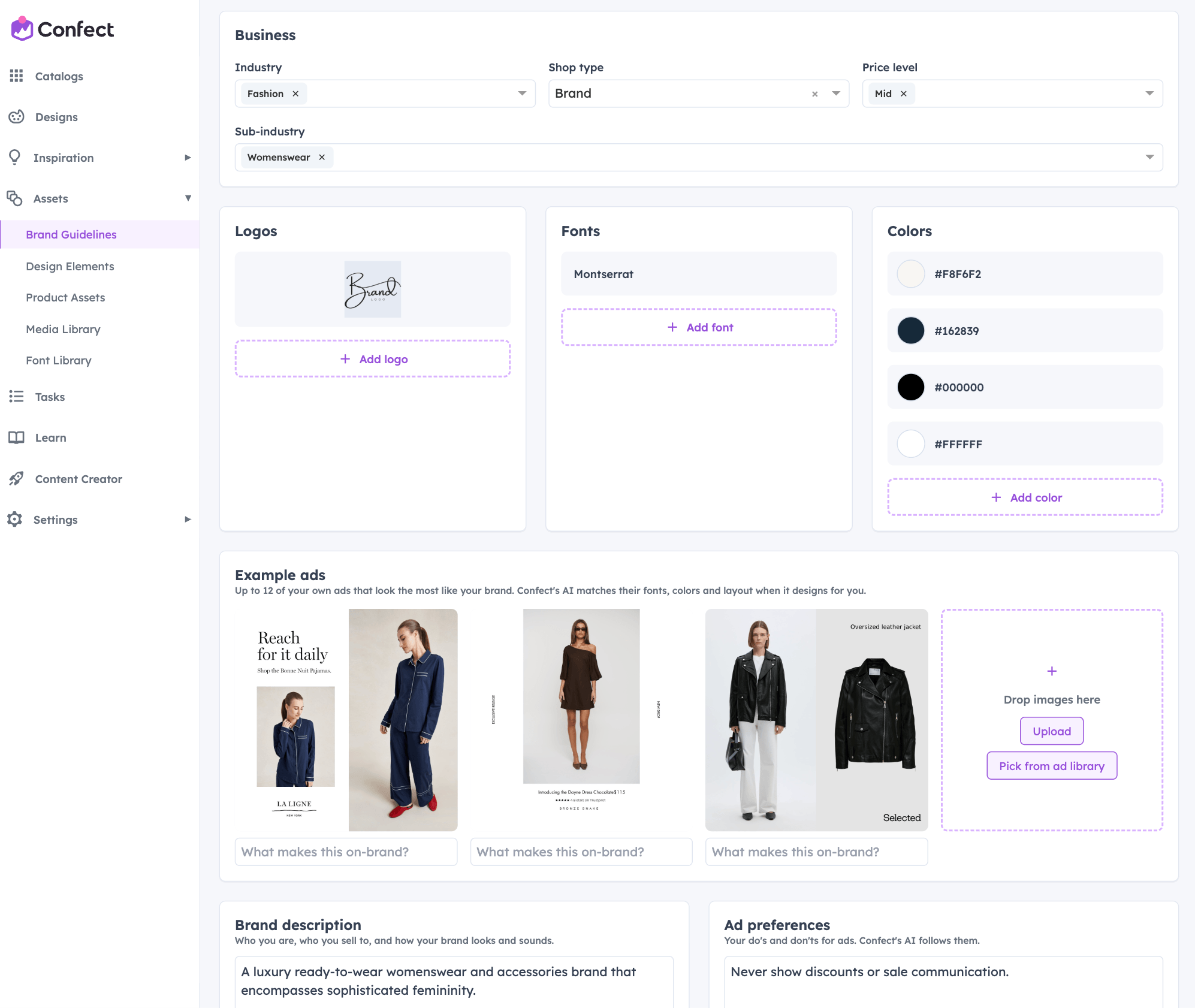
The AI makes better designs when it knows your brand. We highly recommend that you set your guidelines once, and every design it builds will follow them.
Find these inside Assets > Brand Guidelines.
You can add:
- Logos
- Brand fonts
- Brand colours
- Example ads that fit your brand
- A short brand description
- Ad preferences, such as “never show the price” or “always use white text”
The more specific you are, the less you’ll need to correct afterwards. A preference like “text is always dark green, never black” saves you a manual fix on every design.
Recreate ads with AI
1. Turn your static ads into catalog templates
If you already have a static ad that performs well, you can turn it into a catalog design that works for every product.
- Click New design in the top right inside the Designs tab
- Select an existing ad from your Meta ad library
- The AI recreates it as a catalog design
Keep in mind what can be recreated. The AI builds designs from the images in your catalog, so the ad has to be possible with those images. The AI can’t create images that don't already exist, and can't turn packshots (solid colour background images) into model or environment shots, since that would count as AI content.
- If your catalog feed only has packshots - recreate ads that show packshots
- If your catalog feed only has models - recreate ads that show models
- Do not recreate ads that show multiple products - this is not supported by Meta in catalog ads
.png)
In the screenshot above, ads #1 and #2 would be perfect to recreate if your catalog uses model images; ad #4 would be perfect if your catalog uses packshots; and ads #2, #5, and #6 wouldn't work well for recreation since they include multiple products.
2. Recreate catalog ads from other brands or channels
Found a catalog ad you love, from a competitor live in the feed, from the Catalog Ad of the Week, or a case study?
When creating a new design in Designs > New design, you can upload a screenshot and have the design recreated. And if you've filled out your Brand Guidelines, this will generally result in a template that is essentially ready-to-use in just a few clicks.
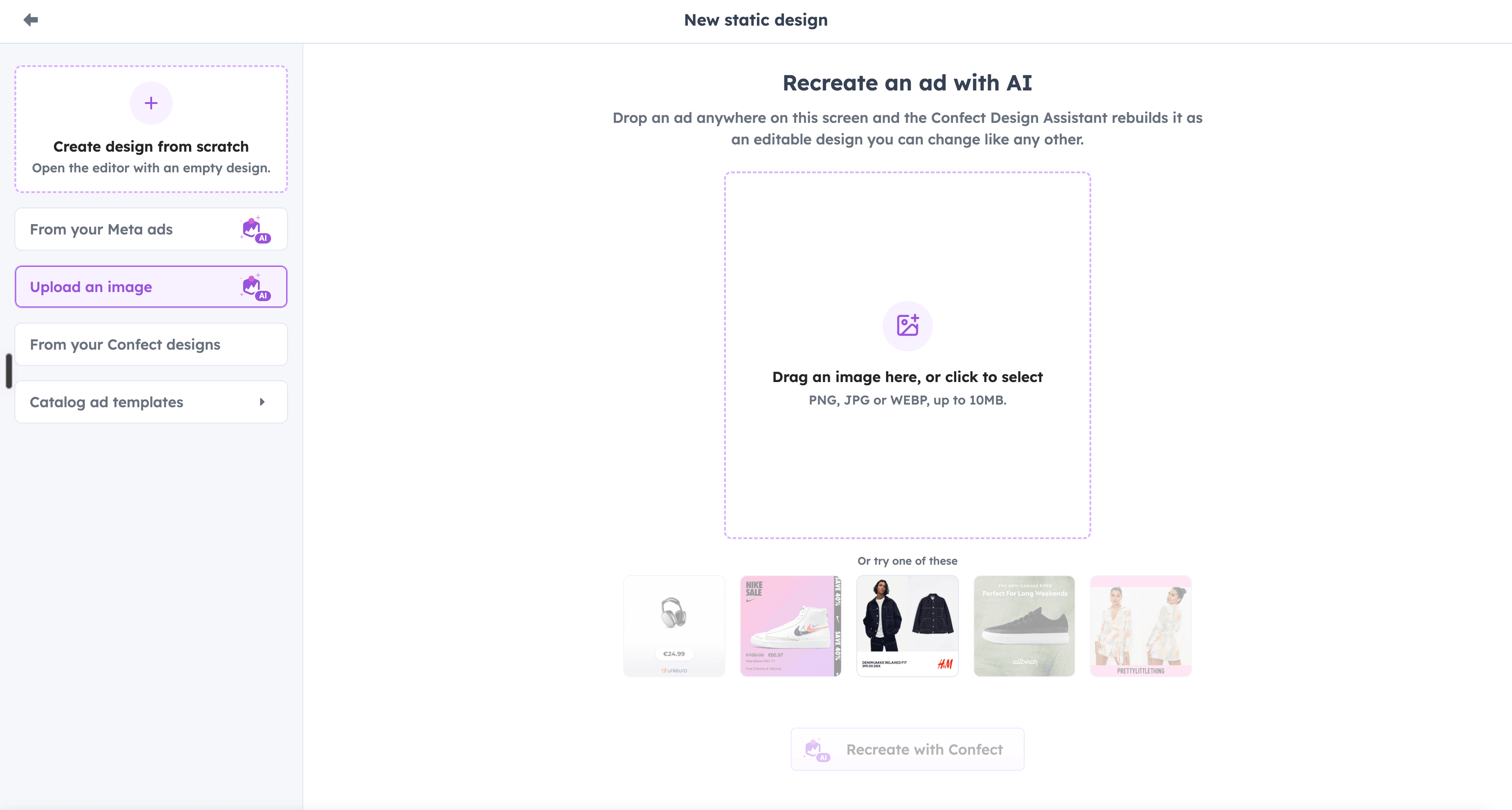
Any type of suitable layout can be recreated with our AI assitant. We've even seen companies uploading a screenshot of the product page, and getting a strong always-on design.
Even if the screenshot comes from other channels like Pinterest, email marketing, or even the website, give it a try and recreate it with Confect 🙌
The AI builds a similar design in your account, using your products and your brand guidelines.
.png)
Touch up the AI design and Save
AI designs aren’t locked to only being editable through the AI assistant. You can switch back to manual editing at any point.
Once the AI finishes building a design for you, and you want to, i.e. change:
- The size of the logo slightly,
- Making the font a bit bigger or smaller,
- Or moving an element a little, ...
It may be easier to do that adjustment manually instead of explaining to the AI "now make the logo a little bigger... now a little smaller", etc. 🙂
Think of it as the AI doing 95% of the work, and you doing the last touches. Once it looks right, save it and put it to work in your catalog.
%20(1).png)